Find the perfect reservation.
Tell Centerline when. It finds the plane.
Describe the flight you want — a Saturday morning, a long weekend, three hours after work — and Plan searches the schedule to show you what fits.
A Centerline exclusive
A new way to find a slot. Only here.
Every scheduling app shows you the calendar — Centerline included. Plan is something different: a search across that calendar, built around the question pilots actually ask. “What fits the time I have?”
Shows you what’s booked.
Open the calendar, see every reservation across the fleet. Great when you want context — what’s the club up to this weekend, who’s flying when, where are the gaps.
Shows you what fits.
Describe what you want — aircraft, days, time window, duration — and Plan searches the schedule for slots that match. A clean list of openings you can actually book, instead of a calendar grid you have to scan. Only in Centerline.
The flow
Set the constraints. See the matches.
Tell Plan what you want at the top. The matches show up right below.
Describe the flight
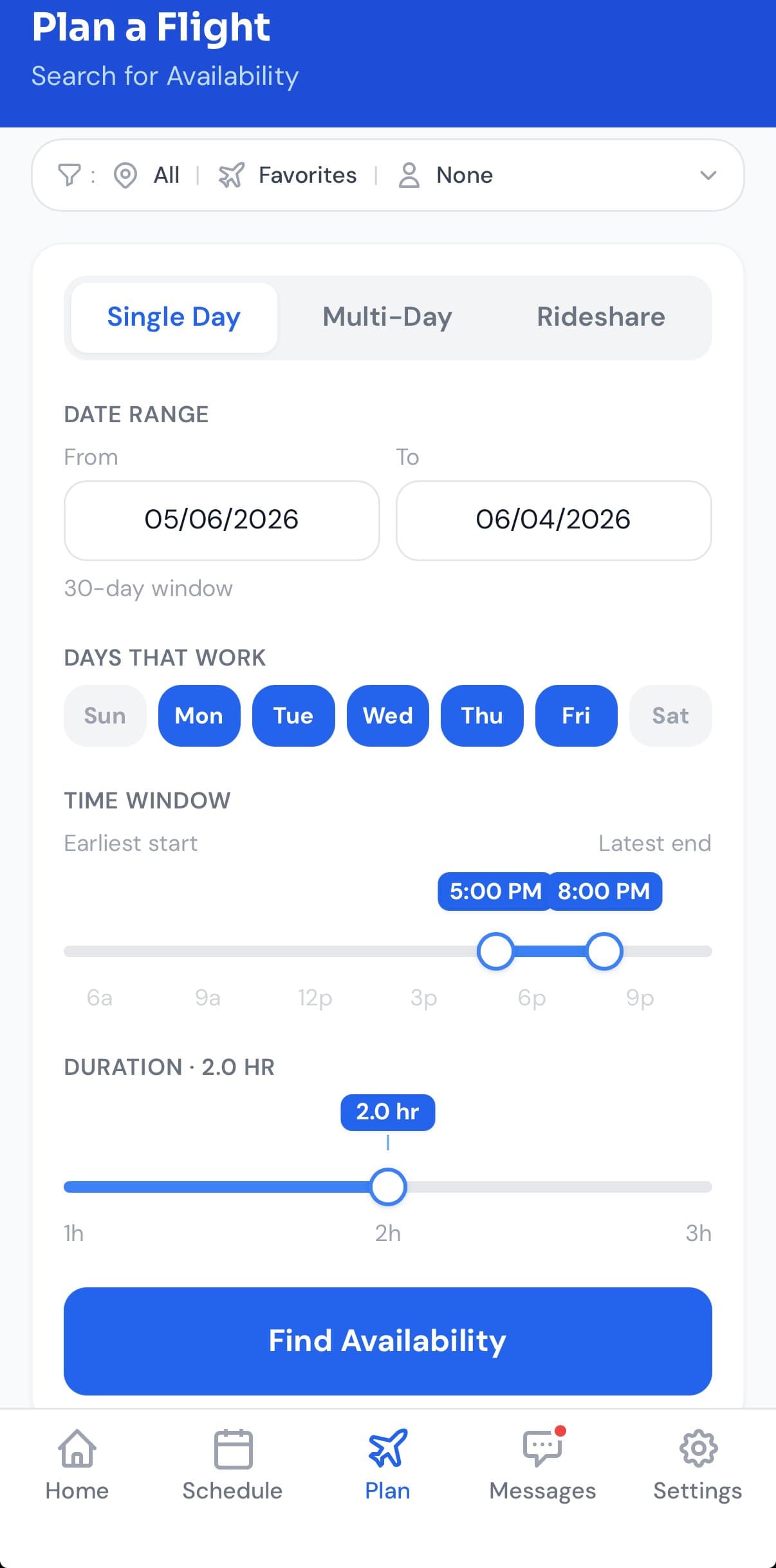
Pick your aircraft. Pick a date range. Tap the days that work. Drag the time window and duration sliders. Tap Find Availability.
Pick from the results
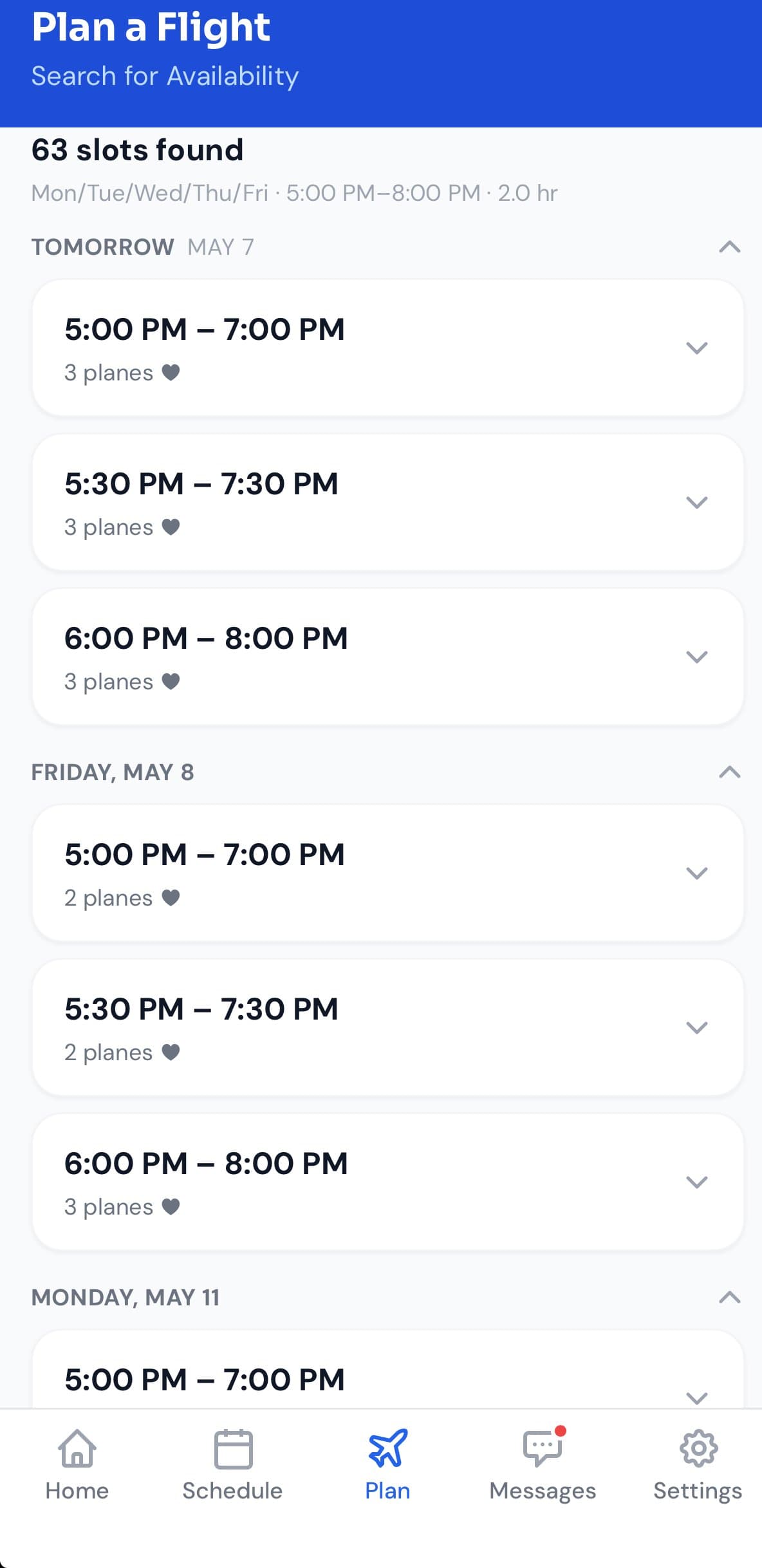
Slots grouped by day. Each one shows the time window and how many planes are open. Tap to expand, tap to book.
Three modes, one page
However you want to fly.
Plan handles three different searches from the same form. Tap the mode at the top, set your constraints, find what fits.
A flight on one day
The everyday case. Pick a time window, pick the days that work, and find a plane open across any of them.
A flight across multiple days
A trip that takes the plane out for a weekend or a week. Plan finds aircraft available for the entire trip — in one query.
A flight with another pilot
Find another club member’s reservation tagged for rideshare. Same form, different question — find a time-building partner. Learn more →
When to use it
Six questions Plan was made to answer.
If you’ve ever scrolled the schedule trying to answer one of these by eye, Plan will save you a lot of squinting.
“What’s open tomorrow morning?”
Last-minute flying. You've got a few free hours and want to get up. Two taps, you've got a list.
“Can I get a plane any Saturday this month?”
Recurring availability. Pick the date range, tap Saturday, set the duration — see every Saturday slot at once.
“Is anything free for the long weekend?”
Multi-day trips. Plan was built specifically to make this question fast to answer.
“I need a 2-hour window between 5 and 8 PM.”
After-work flights. A specific window, a specific length — Plan filters to just the planes that fit.
“When can I schedule my checkride?”
Long block hunting. Checkrides require several-hour slots. Plan finds them across the fleet without manual math.
“Anything available, period.”
Wide-open search. Big window, flexible duration — see everything that's flyable, sorted by when.
Find a plane available for the whole trip.
A weekend in Mammoth — out Friday at 3 PM, back Sunday at 8 PM. A three-day cross-country. The kind of trip where one conflict anywhere in the window means starting over.
Plan checks your chosen aircraft against your full window and shows you only the ones available for the entire trip — in one query.
- Set a start date and time, and an end date and time — anywhere from a 2-day getaway to a two-week trip
- Plan filters out any aircraft with a conflict inside that window
- Combine with the aircraft filter — find a 182 available for your whole weekend, not just any plane
How it works
Three steps. Done.
Choose your aircraft
Filter by favorites, model, or location — or leave it set to “All” and search the whole fleet.
Tell it when
Date range, day-of-week chips, time-of-day window. For Single Day, also set how long the flight needs to be. Plan understands “any Saturday afternoon in May, two hours.”
Pick from the results
Single Day groups results by day and time. Multi-Day groups by aircraft. Either way, tap to expand and tap to book.
FAQ